

Start with each life area
Your life areas are the parts of your life you want to look after, such as health, work or family. Before you pick goals, open each one and write down what a good year in it looks like.- Click Areas in the sidebar and open an area.
- Point just above the area’s name. Add cover and Show vision board appear, plus Add description while the area has none.
- Click Add description and write what a good year in this area looks like. The empty line asks What does success look like in this area?

The buttons that appear above an area's name

An empty vision board with its + tile
Pick one to three goals per area
A goal is something you want to reach, with an end. “Run a half-marathon” is a goal. “Exercise” is an area, and “run three times a week” is better as a habit.- On the area’s page, click Add goal. The new goal already belongs to that area.
- Or open Goals, click New goal, then set its Life area.
On the Free plan you can have 3 goals at a time, and subgoals count as goals, so pick the two or three areas that matter most this year. Completed goals don’t count toward the limit; archived goals do. See Free, Pro and Lifetime.
Give each goal a start date and a deadline
Open the goal and click Date under its name. Turn on Deadline, then click the start day and the last day in the calendar. The Goals list then shows how much time is left, for example 6m left. A deadline doesn’t need to be December 31. “Run a half-marathon” ends on race day; “Read 24 books” can run a full year from today.Break a goal into quarterly subgoals
A year is too long to plan in one piece. Split each goal into three or four subgoals, one per quarter, each with its own deadline.1
Add the subgoals
Open the goal, scroll to Subgoals and click Add subgoal. Name it for what you’ll have done by the end of the quarter, for example “Finish a 16 km long run” by the end of March.
2
Date each one
Open each subgoal and set its Date the same way as the goal’s, ending on the last day of its quarter.
3
Let the subgoals fill the goal
Back on the goal, click the bar under Progress and choose Subgoal progress. The goal’s progress is now the average of its subgoals.
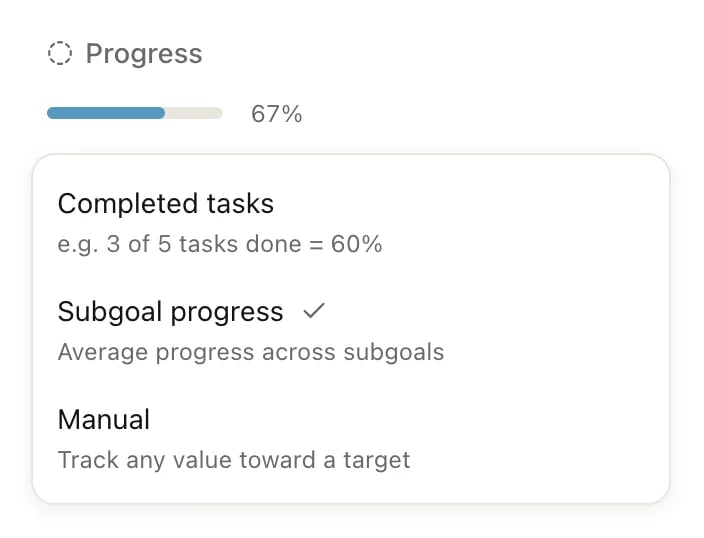
Choose how the goal measures progress
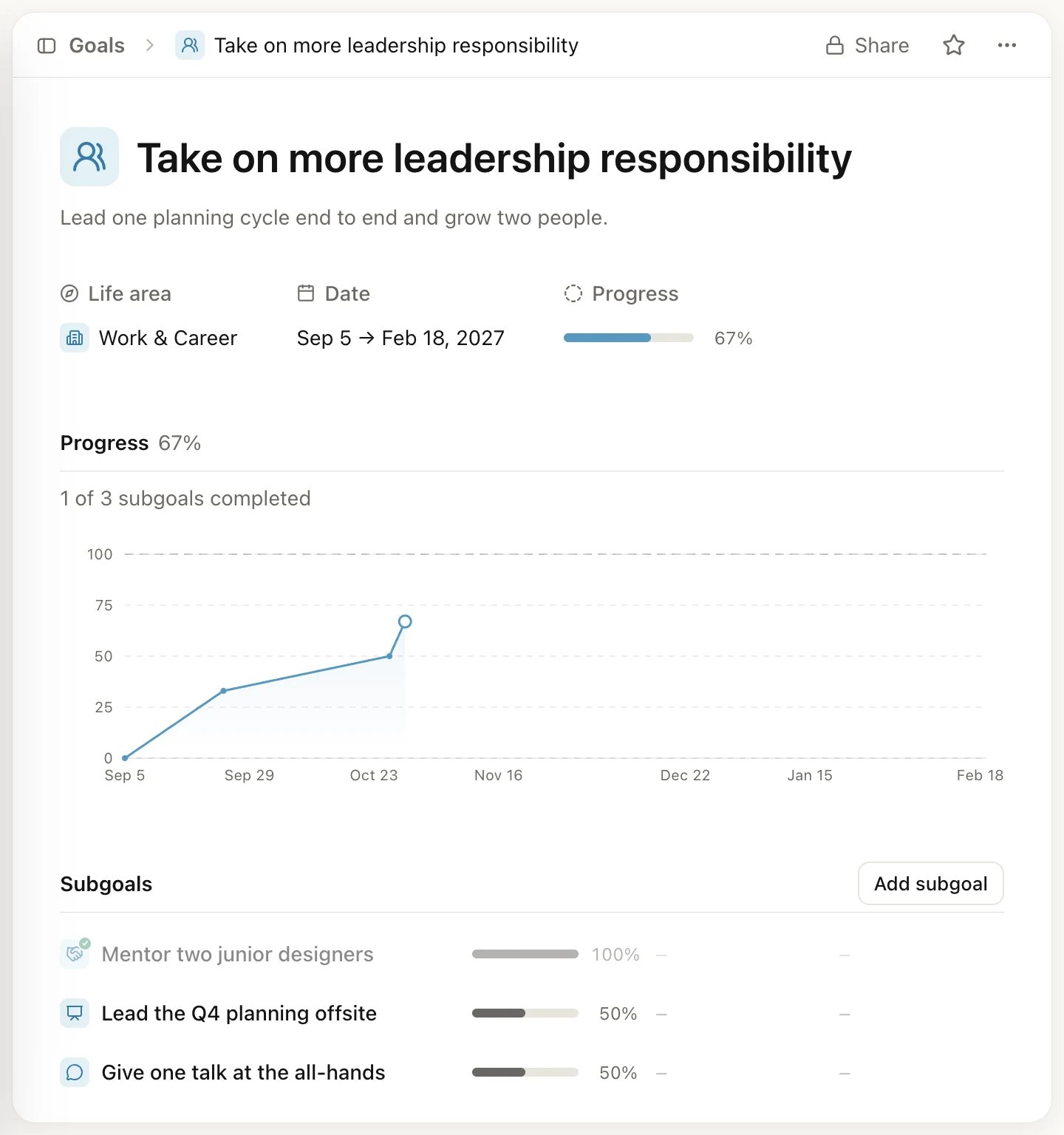
Subgoal progress: the goal's bar is the average of its subgoals
Connect the work to the goal
A goal only moves when something points at it.- Tasks: open a task and set Alignment to the goal or one of its subgoals. With Completed tasks progress, each finished task moves the bar.
- Projects: for a goal with many steps, create a project and set its Alignment to the goal. The project shows on the goal’s page.
- Habits: a habit can be aligned to a goal too, so you see them together, but completing a habit doesn’t change the goal’s progress.
Check in once a month
Make a repeating task so the check-in happens: press C, typeMonthly goal check-in and click Create. Open it from your Inbox, click Date, pick a day and choose Repeat → Monthly. For a rule like the first Sunday of every month, use Custom. See Repeating tasks.
During the check-in:
- Open Goals, click the view settings button and set Sort to Deadline.
- For goals you track by hand, open each one, click Update and log the new number.
- Look at this quarter’s subgoals. If one is behind, give its next task a date this week, or move the subgoal’s deadline and say why in its description.
At the end of the year
- Finished goals: open the goal, click ⋯ and choose Mark completed. If it still has open subgoals, Heym asks whether to Complete all or Just this goal.
- Goals you’re dropping: open the goal, click ⋯ and choose Archive. They disappear from the list but aren’t deleted. Turn on Show archived in the Goals view settings to see them again.
- Looking back: turn on Show completed in the Goals view settings to list the goals you finished.
Related
Goals
Dates, subgoals and the three ways to measure progress.
Life areas
Write a vision and build a vision board for each area.
Weekly review
The weekly loop that keeps yearly goals moving.
Free, Pro and Lifetime
How many goals the Free plan allows, and what counts.