

The Pomodoro timer is part of Heym Pro. Compare plans.
Start the timer
Open the timer in one of these ways:- From a task: open the task, click ⋯ at the top right of it, then Start Pomodoro. The task is linked to the timer.
- From Home: click Start focus at the top of Home, to the right of the Add task… box and New note. If you don’t see it, click ⋯ at the top right of Home, point at Configure widgets and click Quick actions (Customize Heym).
- With the keyboard: press G then F, or press ⌘K, type
Pomodoroand pick it. The timer opens over Home, so you’re on Home when you close it.
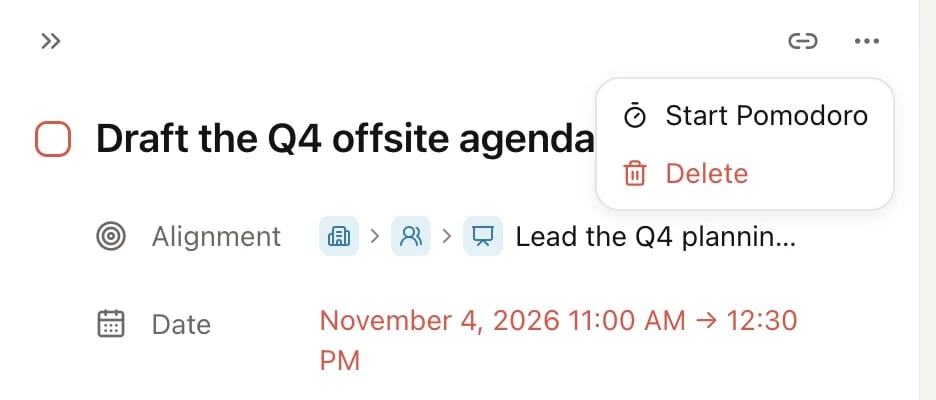
Start Pomodoro in a task's ⋯ menu
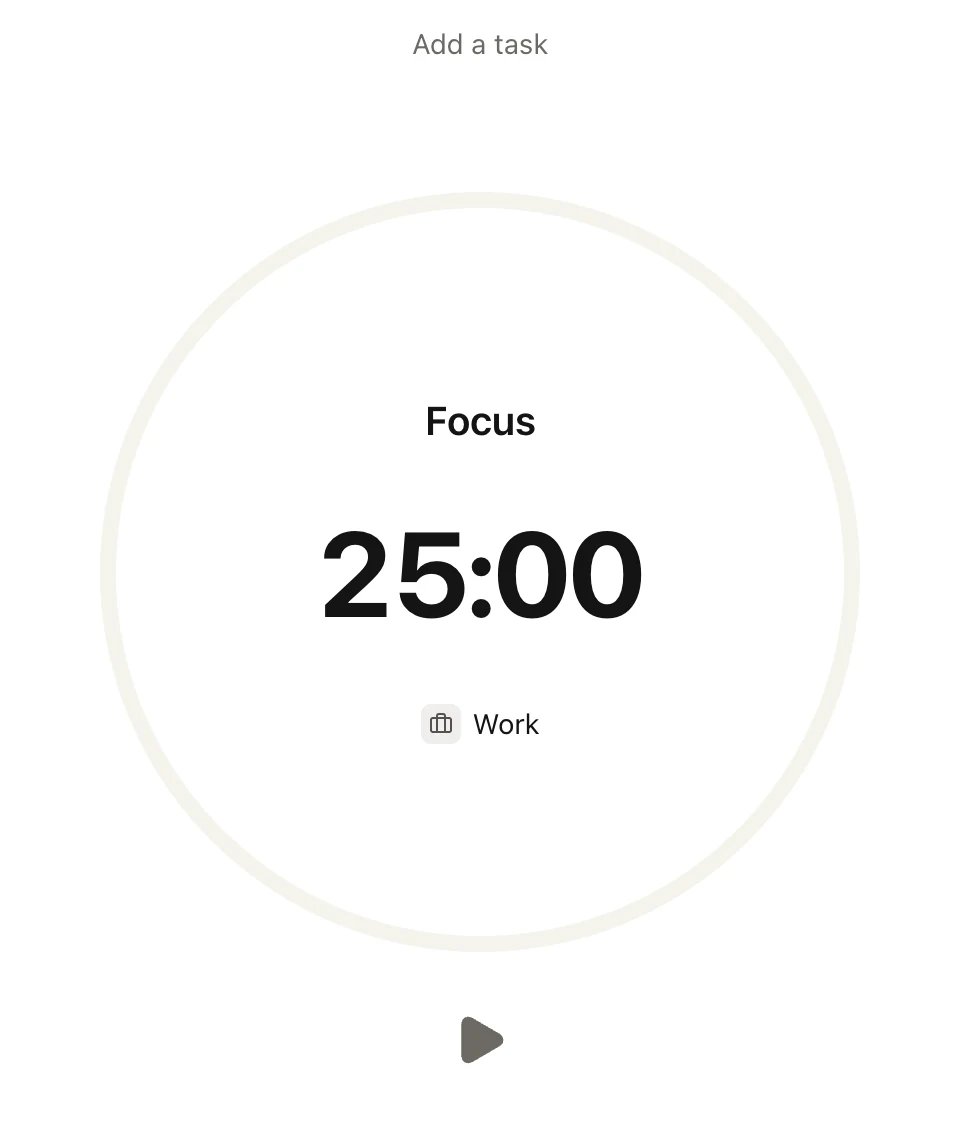
The timer, ready to start
How a round works
With the standard Work profile:- Focus runs for 25 minutes.
- A Short break of 5 minutes follows.
- Focus and short breaks take turns until you’ve finished 4 focus blocks.
- A Long break of 15 minutes follows. After it, the round is over and the timer is ready for the next one.
Pause, skip or stop
While a focus block or break runs, three buttons sit under the clock: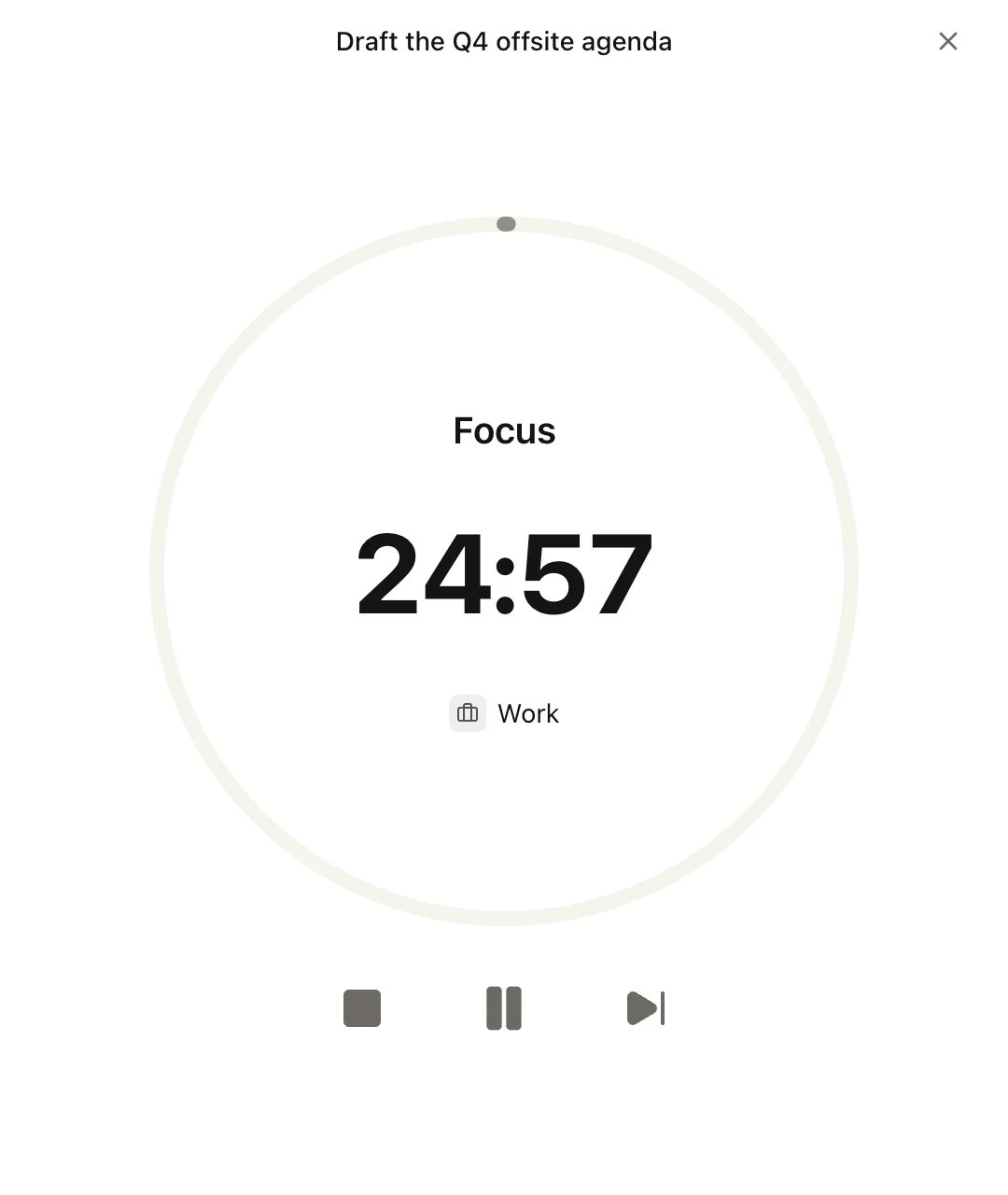
A running focus block with a linked task
Link a task
Linking a task keeps it in front of you while you focus.- Click Add a task at the top of the timer.
- Pick a task, or type to search. The list starts with today’s and overdue tasks.
Keep working while it runs
Click × at the top right of the timer, or press Esc, to go back to Heym. The timer keeps running, and a card at the bottom of the sidebar shows the block, the time left and the profile. Use its buttons to pause, resume or stop, or click the card to open the timer again.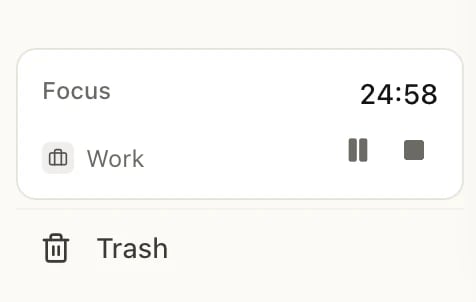
The running timer in the sidebar
Set up profiles
A profile holds your lengths and settings, so you can keep one for deep work and one for short tasks. To change a profile or add one:- With the timer stopped, click the profile name under the clock (it starts as Work).
- Point at a profile and click ⋯ to change it, or click New profile.
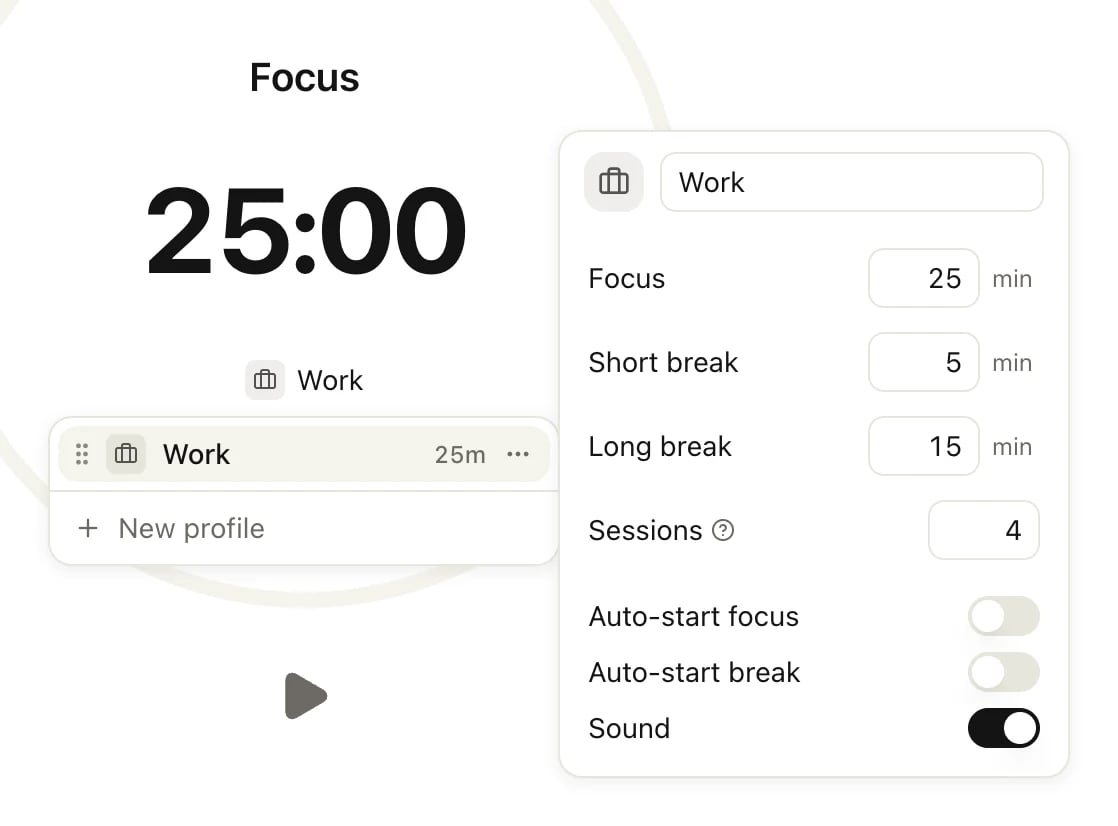
The settings of the Work profile
Changes save as you make them. Click a profile in the list to use it; switch profiles while the timer is stopped. To remove a profile, open its ⋯ and click Delete profile (there’s always at least one). Drag profiles by the handle on the left to reorder them.
Run a one-off countdown
For a single timer without breaks, click the time while the timer is stopped, type a length and press Enter. The timer starts right away and shows Countdown. You can type minutes (45 or 45m), hours (1h, 1h30m) or seconds (90s), up to 24 hours. A countdown has only the stop and pause buttons, no skip.
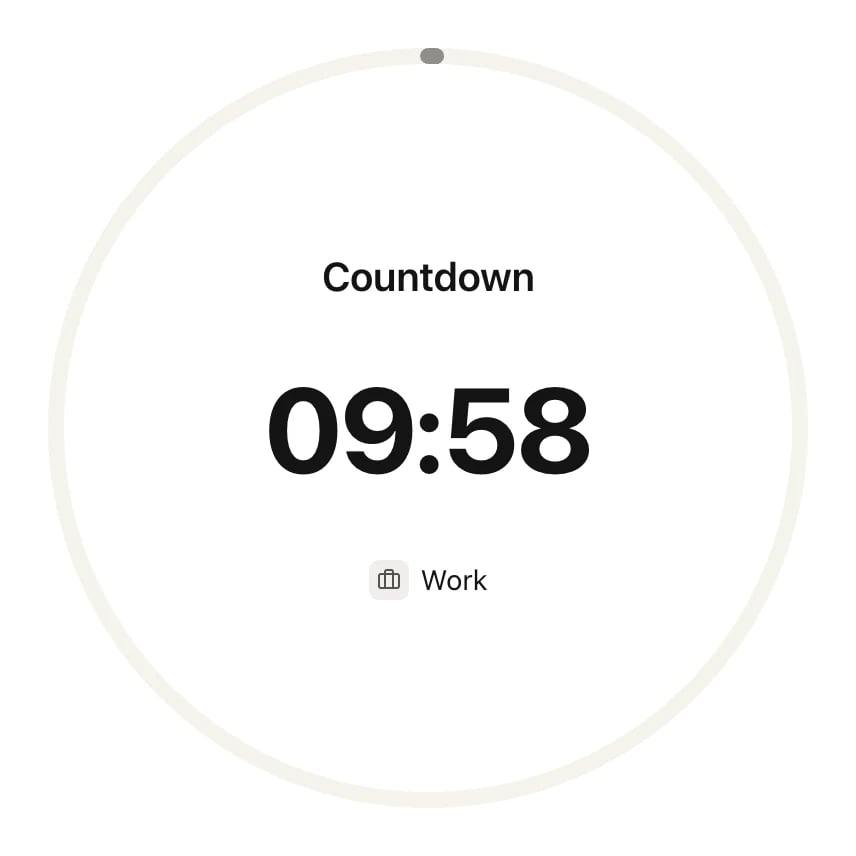
A 10-minute countdown
Good to know
- Profiles stay on this device. Your profiles and a running timer are saved in this browser or in the Mac app, not in your account, so another computer starts with the standard Work profile.
- Reloading is safe. If you reload the page or close Heym while the timer runs, it keeps counting. If a block ended while Heym was closed, it ends when you open Heym again.
- After a reload, pick your profile again. When you reload the page or open Heym with the timer stopped, the timer shows your profile’s name but uses the standard lengths (25, 5 and 15 minutes, 4 sessions). Click the profile name under the clock, then click your profile, to use its own lengths.
- There’s no history screen. Heym doesn’t show a list or a chart of past focus sessions.
- On the Free plan, Start Pomodoro, Start focus, G then F and the command menu open the upgrade window instead of the timer.
Limits
Focus blocks and breaks can each be 1 to 1,440 minutes long, and a round can have 1 to 10 focus sessions.Related
Tasks
Create the tasks you focus on.
Keyboard shortcuts
G then F opens the timer.
Reminders
How notifications reach you and how to allow them.
Free, Pro and Lifetime
What Pro adds, the timer included.