

Inbox: tasks you haven’t filed yet
A task stays in your Inbox while it has no date and no alignment: no project, goal or life area. Give it either one and it leaves the Inbox for Today, Upcoming or the project, goal or area you picked. New tasks land here when you add them with C and don’t give them a date or a home. That makes the Inbox the place to empty your head quickly and file things later. To move a task out of the Inbox, click it and set its Date or its Alignment. Tasks someone shares with you never show in your Inbox; it’s only for your own tasks. To file several tasks, move to each one with ↓ or ↑ and press X, or press ⌘A to select them all. Then press ⌘K and choose Set date… or Set alignment… to file them all at once. See Keyboard shortcuts.Today: what’s due today
Today shows every task due today, plus anything you missed on earlier days. By default it splits the day by start time.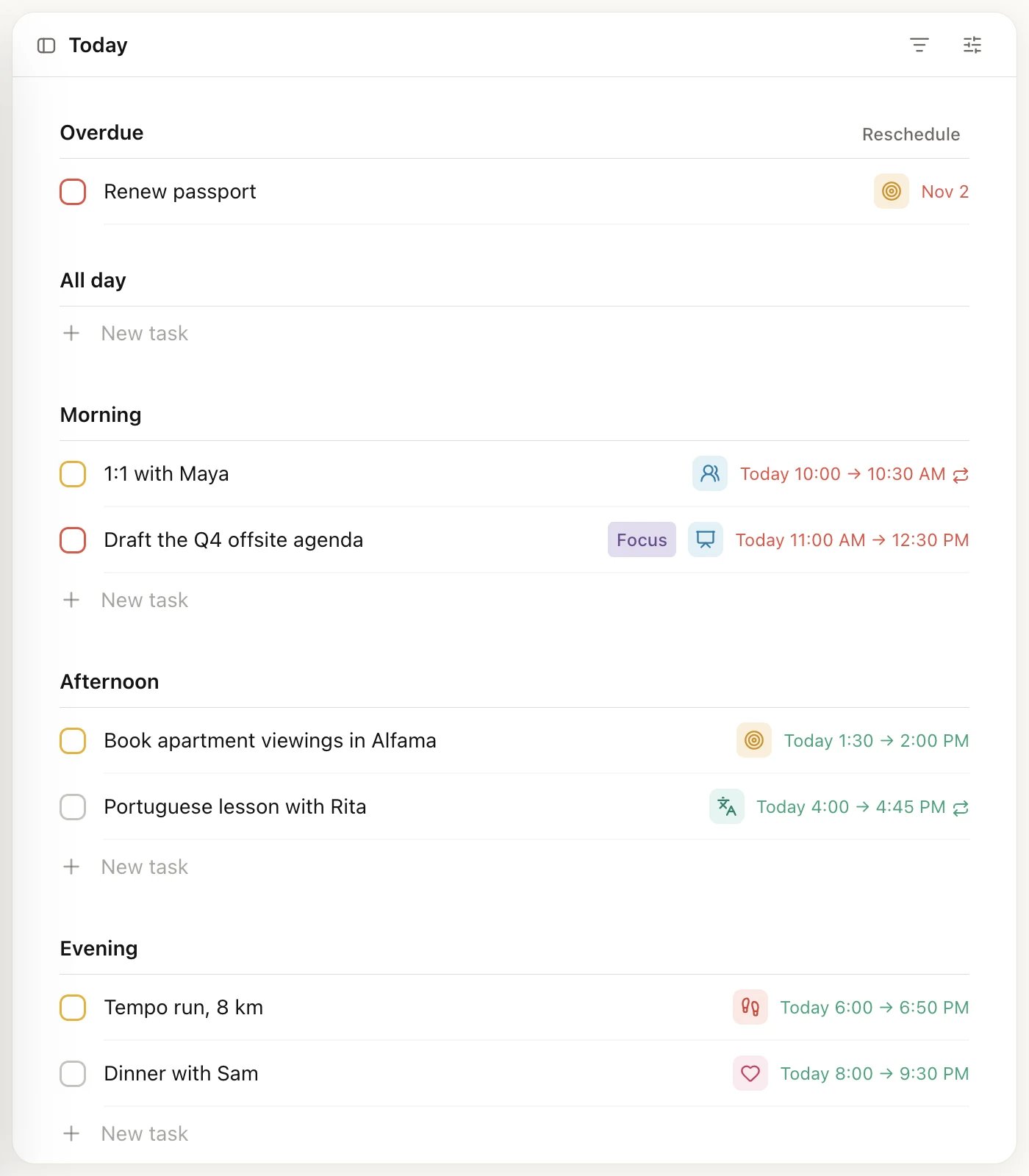
Click New task under a section to add a task right there. Under All day the task gets today’s date and no time. Under Morning, Afternoon or Evening it also gets a start time of 9:00 AM, 12:00 PM or 6:00 PM, which you can change afterwards.
Move everything that’s overdue
Click Reschedule next to Overdue and pick a date. Every overdue task moves to that day in one go. For a repeating task, only the missed occurrence moves; the rest of its schedule stays as it is. To move a single task instead, point at it, click the handle on its left and click the sun (Today), the sunrise (Tomorrow) or the next button (Next week). See Tasks. For a repeating task, drag it to another day in Upcoming instead. Dragging moves only the missed occurrence, while the handle menu changes the date the whole series starts from.Upcoming: the days and months ahead
Upcoming lists every task with a date, from overdue to next year.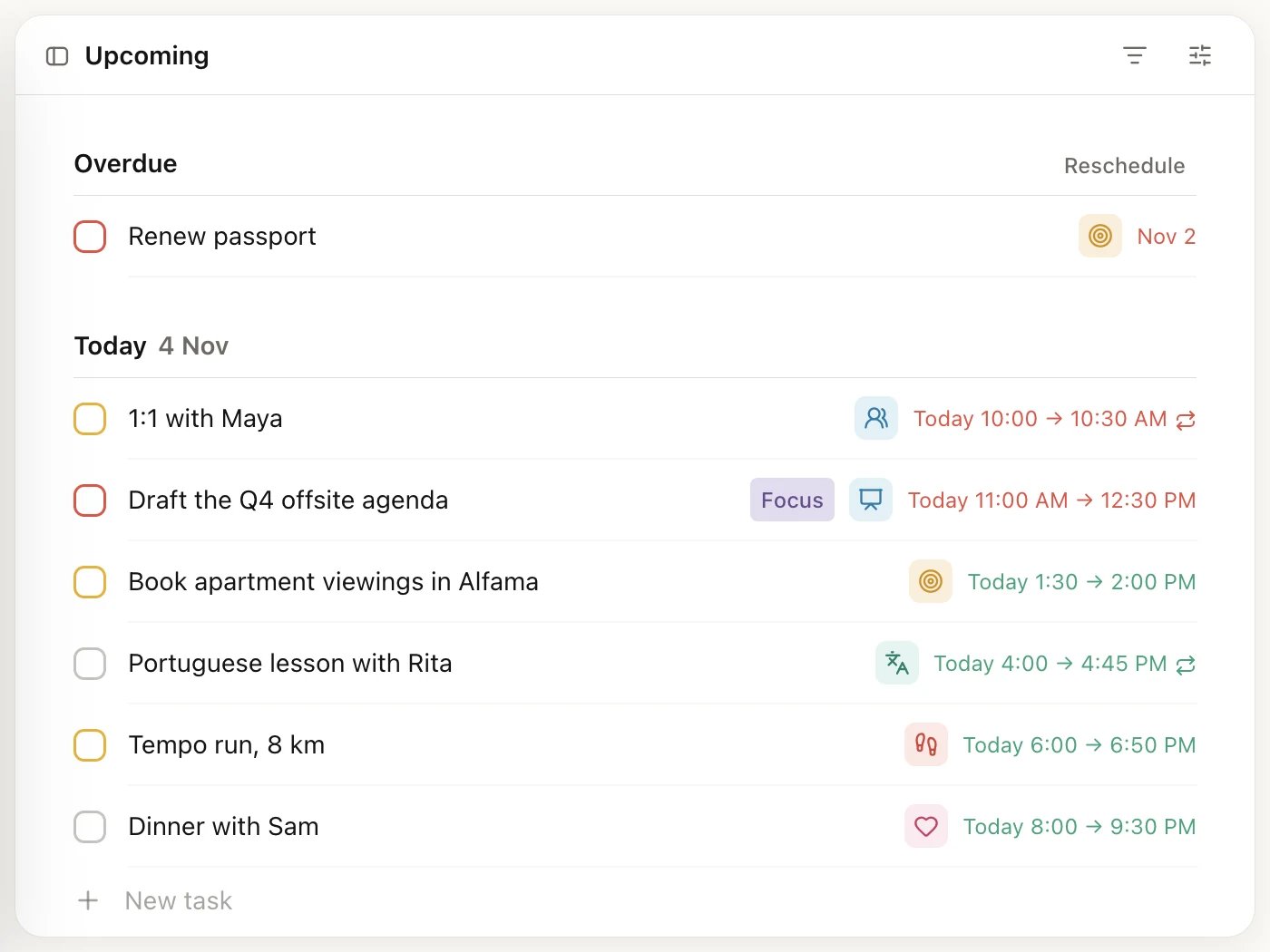
- Overdue, if anything is.
- Today, Tomorrow and every other remaining day of this month, each under its own heading.
- One heading for each later month of this year.
- One heading for next year, which also holds anything further out.
Switch to the calendar
Today and Upcoming can also show your tasks on a calendar. Click the View settings button (the sliders icon, top right) and choose Calendar; choose List to go back. Heym remembers your choice on this device. On Upcoming, switch between 4 days (4D), a week (W) and a month (M). Today’s calendar shows only today. In calendar mode, View settings also has Show completed and Show habits, both on at first. More on Plan on the calendar.Sort, group and filter
Each list has its own settings, and Heym keeps them until you change them.- View settings (the sliders icon) holds Sort and Group. On Today, they appear while the list view is on.
- The Filters button (the filter icon next to it) opens a filter bar. Click + in the bar to add a filter.
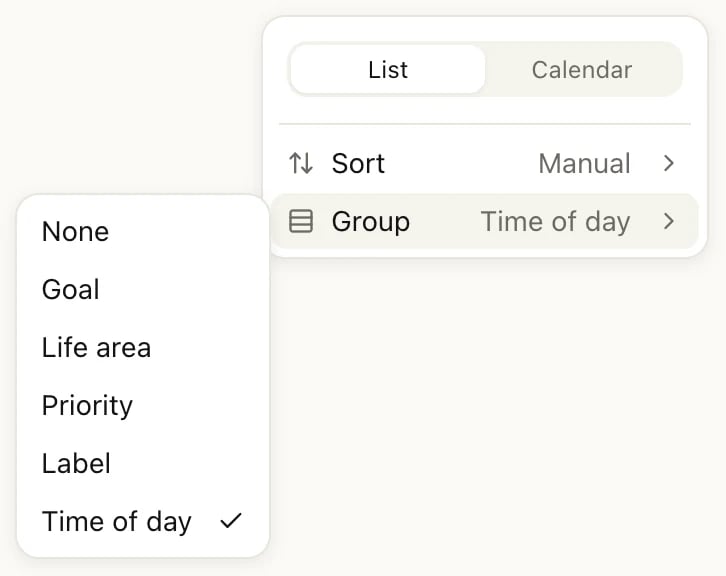
Today's View settings, with the Group options open
Upcoming is always sorted and grouped by day, so its View settings only switch between list and calendar. Its filters are the same as Today’s.
Manual keeps the order you drag tasks into. Choose a sort you already picked to flip its direction; an arrow shows which way it runs. Today starts grouped by Time of day, which gives you the Morning, Afternoon and Evening sections above.
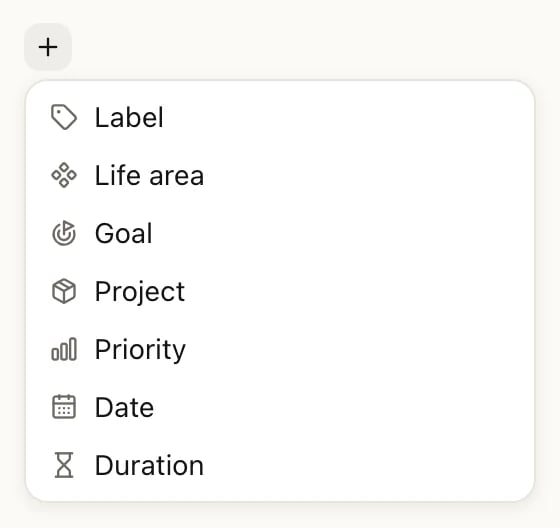
Adding a filter on Today
Drag a task into another section
Point at a task and drag it by its handle (the six dots on its left) into another section. Heym changes the task to fit there.
This is also a quick way to move one overdue task to today: drag it from Overdue into a section below it. You can’t drop a task into Overdue.
For a task that repeats based on its Scheduled date, dropping it on a day or a time moves only that occurrence. Priority, label, goal and life area groups change the whole series. If the list is sorted by something other than Manual, Heym first asks Would you like to remove sorting? Click Remove to drop the task and switch to Manual.
What happens if…
- You complete a task. It leaves the list. Find it again under Views → Completed, or press G then C. In calendar mode, Show completed keeps completed tasks visible on the calendar.
- You add a task while a filter is on. The task gets the filter’s values, so it doesn’t disappear from the list you’re looking at. With Label is Errands, for example, the new task gets the Errands label.
- Someone shares a project with you. Its tasks show in your Today and Upcoming, except tasks assigned to someone else and tasks in anything you can only view. Shared tasks never show in your Inbox.
Choose the page Heym opens with
Heym opens on Home at first. To open on your Inbox or Today instead, go to Settings → Preferences and change Default start page to Inbox, Today or Last visited. More options on Customize Heym. To jump between the lists from anywhere, press G then I for Inbox, G then T for Today, or G then U for Upcoming.Related
Tasks
Create tasks and set their date, priority and labels.
Type a task in one line
Add the date, time and project while you type.
Repeating tasks
Tasks that come back every day, week or month.
Calendar
Drag tasks onto times and see your week.