You can change what Heym shows and in which order, so the pages you use most are one click away. This page covers the sidebar, favorites, the Home page, the page Heym opens first, the theme, and how times and weeks are shown. These settings work the same in the web app and the Mac app. Most of them live in Settings. To open Settings, click your name at the top of the sidebar and choose Settings, or press ⇧⌘,.

Choose what’s in the sidebar

1

Open the sidebar settings

Open Settings and click Sidebar.
2

Show or hide an item

Click the menu next to an item (it shows Always show) and choose Never show to hide it. To bring the item back, open the same menu, which now shows Never show, and choose Always show.
3

Change the order

Drag an item by the handle on its left. You can also open the menu next to it and choose Move up or Move down.
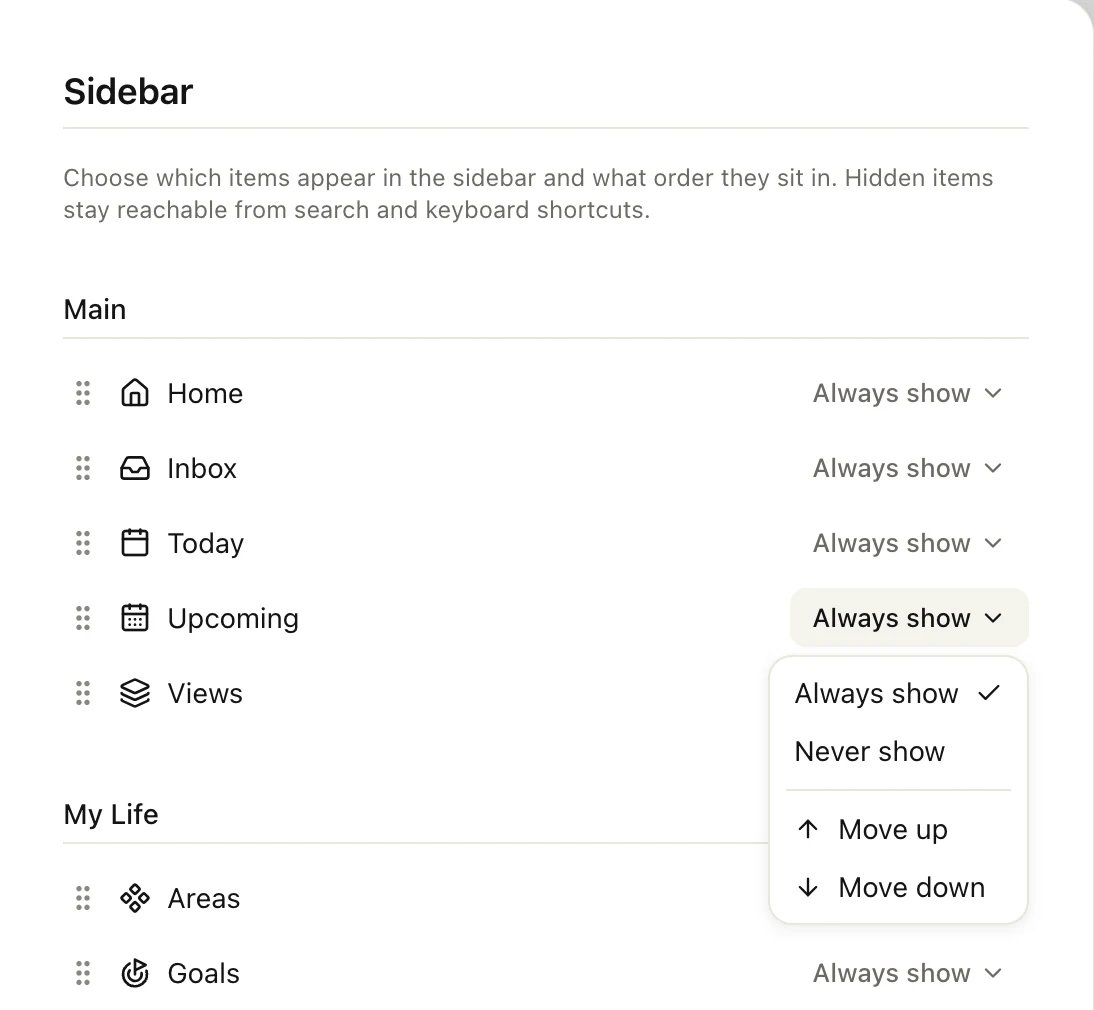
The menu next to Upcoming in Sidebar settings, with Always show checked, Never show, Move up and Move down

The menu next to an item

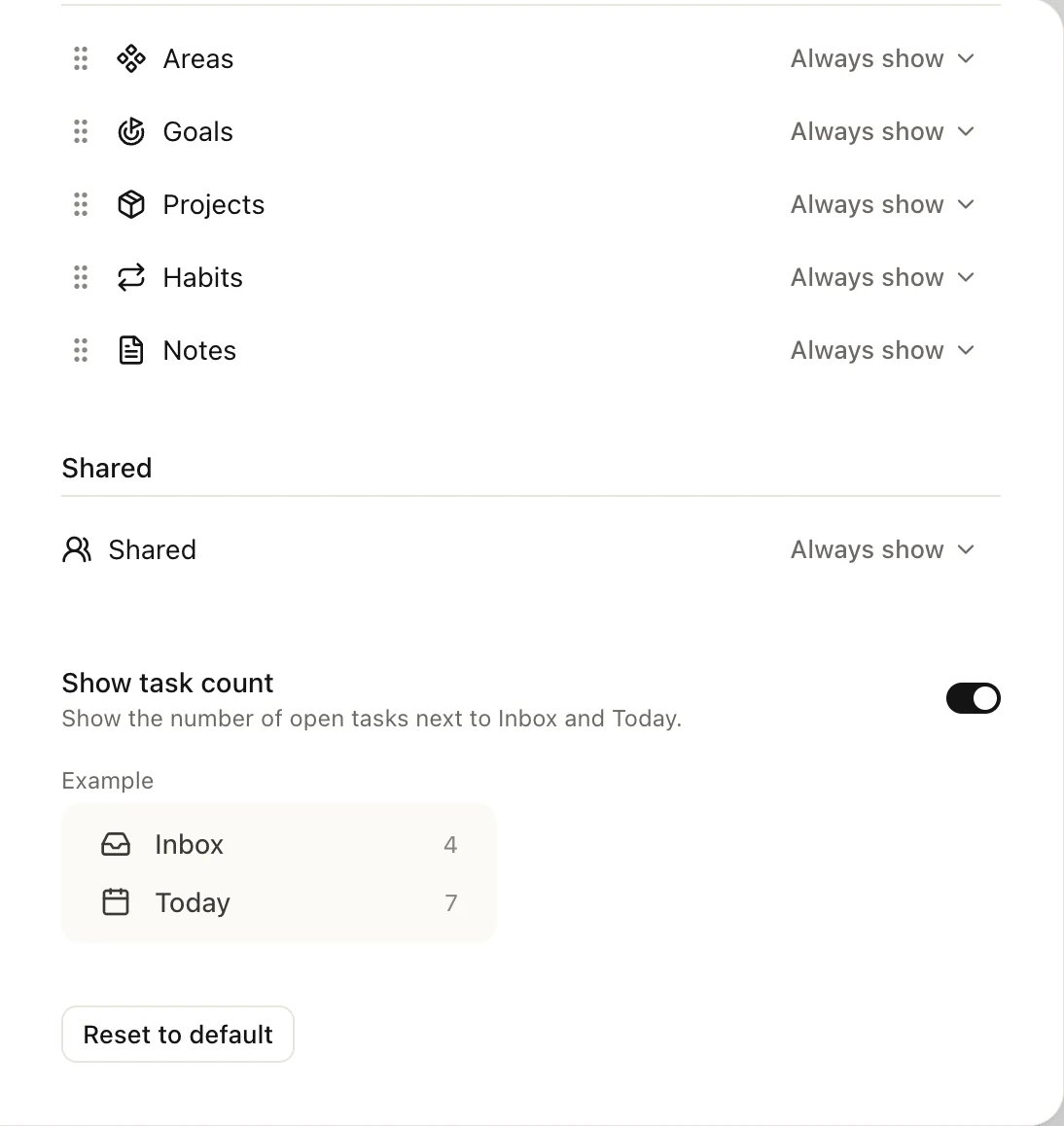
Items stay in their group: you can reorder Main (Home, Inbox, Today, Upcoming, Views) and My Life (Areas, Goals, Projects, Habits, Notes), but not move an item from one group to the other. Further down, you can hide the Shared section, which lists what other people share with you. Trash always stays at the bottom of the sidebar. Hiding an item only removes it from the sidebar. You can still open it from search (⌘K) and with its keyboard shortcut, such as G then U for Upcoming. If you hide every item in a group, the group’s heading goes too. Show task count puts the number of open tasks next to Inbox and Today. Turn it off if you’d rather not see the numbers. Reset to default brings back the original order, shows every item again and turns task counts back on.
The bottom of the Sidebar settings: the items Areas, Goals, Projects, Habits and Notes, the Shared section, the Show task count switch with an example showing Inbox 4 and Today 7, and the Reset to default button

The bottom of Settings → Sidebar

To hide the whole sidebar for a while, press ⌘. or click the sidebar button at the top of it. Press ⌘. again to bring it back.

Pin favorites to the sidebar

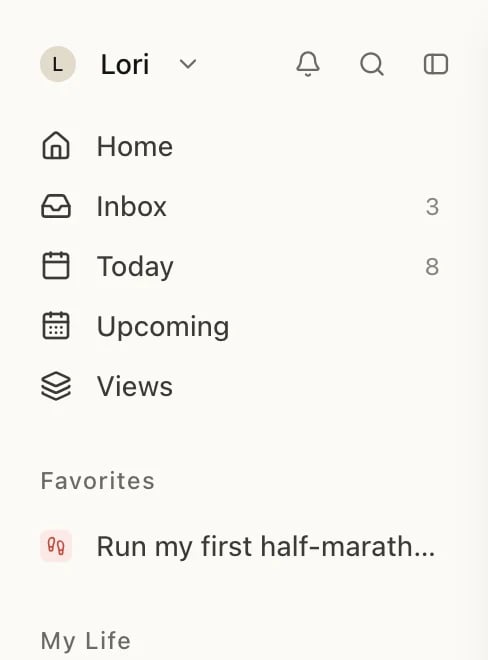
Favorites put the goals, projects, life areas, labels and views you open most in the sidebar. They sit under Favorites, below Home, Inbox, Today, Upcoming and Views, and above My Life.
  1. Open the goal, project, life area, label or view.
  2. Click the star at the top right of the page (Add to favorites).

The top right of a goal's page with Share, an empty star outlined in red, and the ⋯ button

The star at the top right of a goal

The item appears under Favorites in the sidebar, and the star turns yellow.
The top of the sidebar: Home, Inbox, Today, Upcoming and Views, then the Favorites heading with the goal Run my first half-marathon, then the My Life heading

A goal pinned to Favorites

  • Reorder favorites: drag them up or down in the sidebar.
  • Open one with the keyboard: press G, then 1 to 9 for your first to ninth favorite.
  • Collapse the list: click the Favorites heading. Click it again to expand it.
  • Remove a favorite: click the star again, or point at the favorite in the sidebar, click ⋯ and choose Remove from favorites.
Tasks, habits and notes can’t be favorites. To keep a list of tasks one click away, favorite a label or a view instead.

Choose the widgets Home shows

Home is your overview page. You decide which widgets (the sections of the page) it shows and in which order.
  1. Click Home in the sidebar.
  2. Click ⋯ at the top right of the page.
  3. Point at Configure widgets.
  4. Click a widget to show or hide it. A check mark means it’s shown.
  5. Drag a widget by its handle to move it up or down.
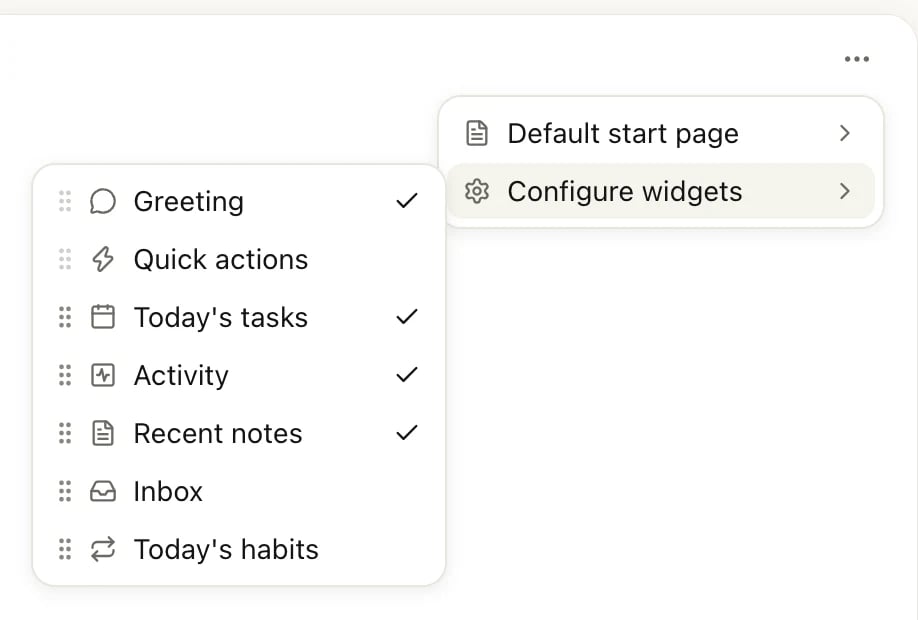
The top right of the Home page with the ⋯ menu open on Configure widgets, listing Greeting, Quick actions, Today's tasks, Activity, Recent notes, Inbox and Today's habits, with check marks next to the ones shown

Home's ⋯ menu with Configure widgets open

Greeting and Quick actions always stay at the top. You can hide them, but not move them. If you hide everything, Home says Make yourself at home.

Choose the page Heym opens first

Heym opens on Home unless you pick another page.
  1. Open Settings and click Preferences.
  2. Next to Default start page, choose Home, Inbox, Today or Last visited.
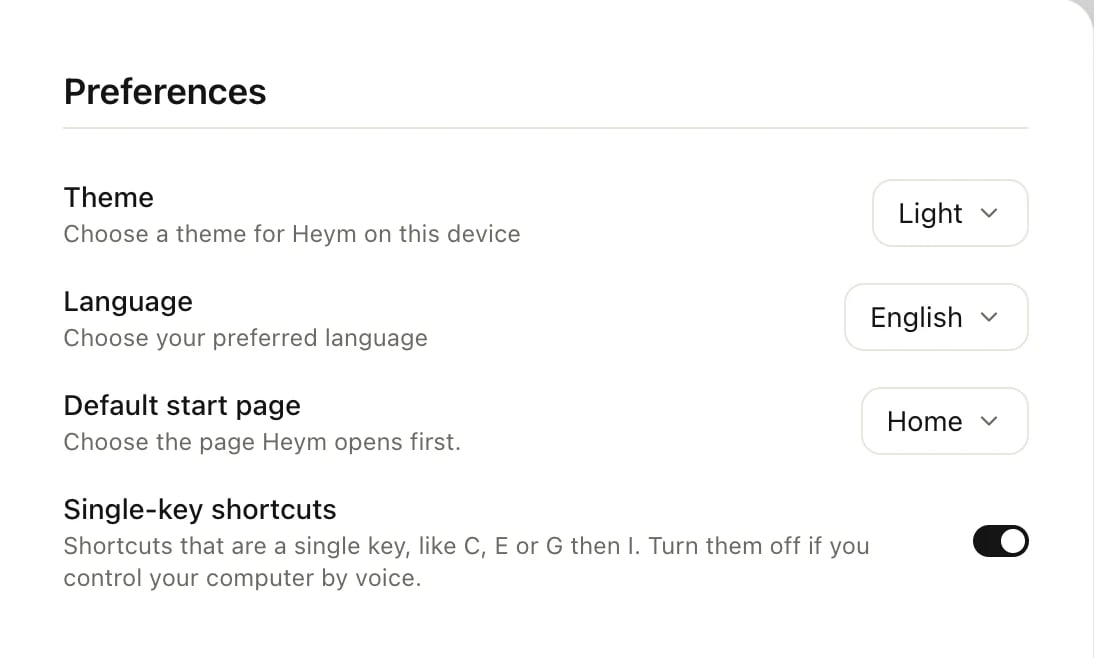
You can also set it on Home: click ⋯, then Default start page. Last visited opens the page you were on when you left, and it’s remembered separately on each computer and browser. In the Mac app, new tabs open on this page too. With Last visited, they open on Today.
The Preferences settings: Theme set to Light, Language set to English, Default start page set to Home, and the Single-key shortcuts switch

Settings → Preferences

Switch to dark mode

  1. Open Settings and click Preferences.
  2. Next to Theme, choose Light, Dark or System setting.
System setting matches your computer’s light or dark appearance. The theme applies to the browser or Mac app you set it in, so you can use dark mode on one computer and light on another.

Change the time format and the first day of the week

  1. Open Settings and click Date & time.
  2. Next to Time format, choose 13:00 (24-hour) or 1:00 PM (12-hour).
  3. Next to Week start, choose the day your week begins.
Until you change it, the time format follows your language: in English, Heym shows times like 1:00 PM. Weeks start on Monday unless you pick another day. Week start changes the weeks in Upcoming, the calendar and your habits. Weekly habit numbers are counted over this week, and choosing Next week for a task moves it to this day.

Good to know

  • Settings follow you. The sidebar, favorites, Home, start page, time format and week start are saved to your account, so they’re the same on every computer where you’re signed in. Only the theme and Last visited are set per computer or browser.
  • Language is on Preferences too. See Your account.

Keyboard shortcuts

Jump to any page, including hidden ones.

Views and filters

Save a list of tasks you can pin as a favorite.

The Mac app

Tabs, the menu bar icon and updates.

Your account

Your name, email, language and sign-in.