

Check which account you’re signed in with
Click your name at the top of the sidebar. The first line of the menu is the email address you’re signed in with.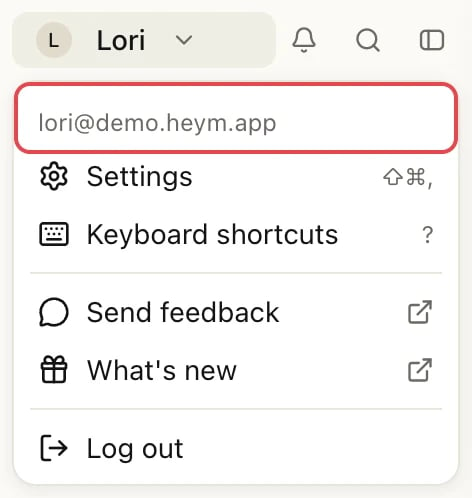
Reload Heym
A Heym window that stays open doesn’t always pick up changes made somewhere else: on another computer, in the Mac app, or in another browser tab.- In a browser: reload the page.
- In the Mac app: choose View → Reload in the menu bar, or press ⌘R. The Mac app also loads your latest changes by itself when you come back to it after five minutes or more away.
Update Heym
- In a browser: when a new version of Heym is out, a blue bar at the top of the window shows Click here to update to the latest version. Click it to reload.
- In the Mac app: updates download by themselves. When one is ready, the bottom of the sidebar shows Relaunch to update. Click it, or quit Heym and the update installs.
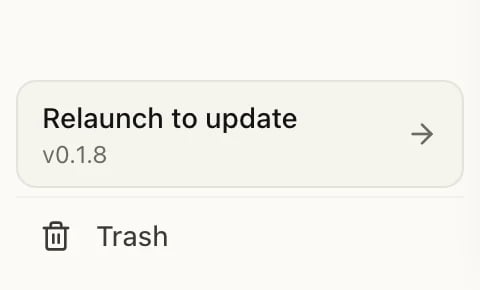
An update waiting in the Mac app
A change you made is missing
If your internet connection drops, a change you make stays on screen and Heym sends it once you’re back online. Keep Heym open, and don’t reload it, until you’re back online. If you close or reload Heym before that, the change is lost and you need to make it again. If Heym can’t save a change, it shows Something went wrong. Please try again. and puts the item back the way it was. Make the change again.The Mac app shows “You’re offline”
The Mac app shows You’re offline when it can’t reach Heym’s servers as it opens or reloads its window. Check your internet connection, then click Try again.Still out of date?
Write to support@heym.app and tell us the email you sign in with, which computer or browser shows old data, what’s missing (for example the title of a task) and when you changed it.Related
Can't sign in
Email links, codes and a second account.
The Mac app
Updates, the offline page and heym:// links.
Your devices
Where Heym runs and how to get the Mac app.
Contact support
What to put in your message.