

Create a task
There are several ways to add a task. In the New task window and on a New task line in a list, you can type the date, priority and more along with the title.- Press C anywhere in Heym to open the New task window. Type a title, add details with the buttons along the bottom (from left to right: alignment, date, priority, labels and reminders), then press Enter or click Create.
- Click New task at the end of a list. The task takes that spot’s date or home: under Tomorrow in Upcoming it’s due tomorrow, in a project it belongs to that project.
- Press ⌘K (Ctrl+K on Windows), type the title and choose Create task “…”. The New task window opens with your title in it. Heym doesn’t pick up dates or priorities in text you typed into ⌘K, so set them with the buttons along the bottom, then press Enter to save.
- In the Mac app, choose File → New Task, or press ⌘N.
- With a task focused in a list, press ⇧Enter to add a new one right below it.
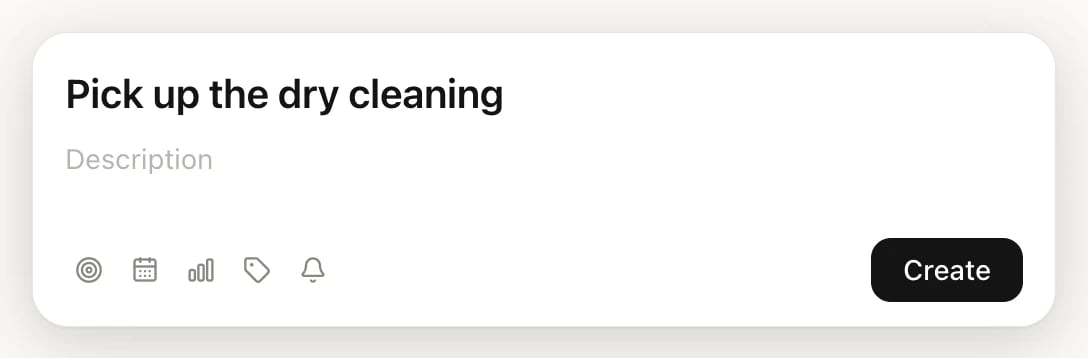
The New task window
Set a task’s details
Click a task to open it on the right side of the window. Change any detail there; Heym saves as you go.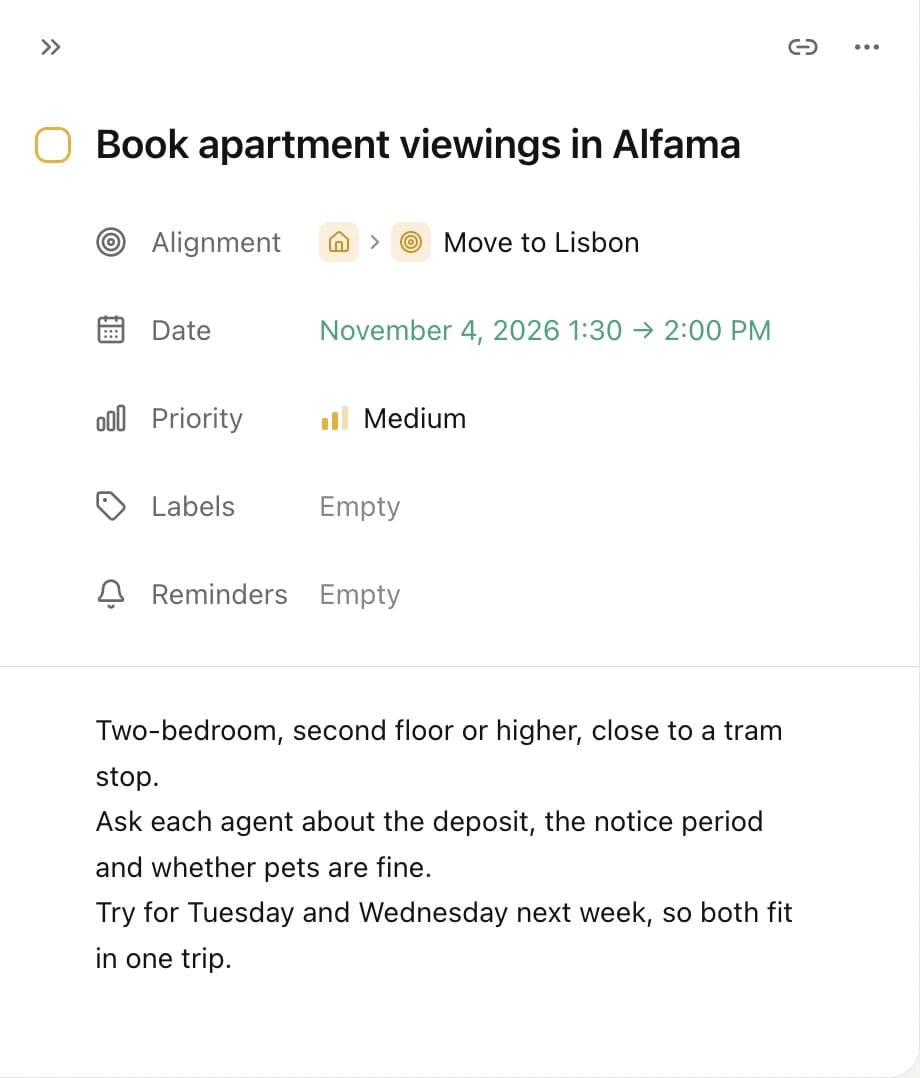
Below the details is the description: room for notes, links, images or a checklist. To rename the task, click its title and type.
To copy a link to the task, click the link button (Copy link) at the top right of the open task. The link opens the task on the page where it’s listed: its project, goal or life area if it has one, otherwise Today, Upcoming or Inbox, and Views → Completed once it’s done. If the task was deleted, the link opens Trash and says That task was deleted. You can restore it from your trash.
Date, start time and duration
Click the date (or Empty) next to Date to open the date picker.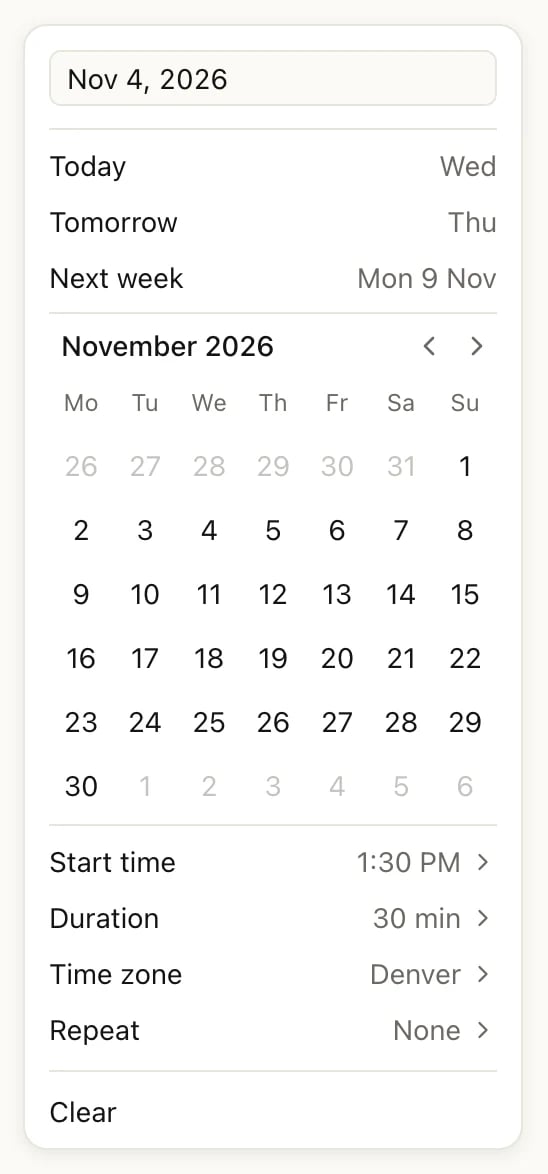
The date picker
- Pick a day from Today, Tomorrow, Next week or the calendar, or type a date such as “next friday” into the box at the top. Next week is the first day of next week: Monday, unless you changed Week start in Settings → Date & time.
- Start time gives the task a time slot. Tasks with a start time sort into Morning, Afternoon or Evening on Today.
- Duration sets how long it takes. Pick a length from the list, which runs from 00:15 to 23:00 in hours and minutes, or type one such as 01:15. Clear at the top of the list removes the duration.
- Repeat makes the task come back on a schedule. See Repeating tasks.
- Clear removes the date.
Time zone
A task with a start time is Floating until you pick a time zone. The picker explains this as “Follows your local time”: a 9:00 AM task stays at 9:00 AM wherever you are. Once you pick a zone, the Time zone row shows it instead, like Denver in the picture above. Pick a city or zone under Time zone when the time belongs to a place, like a call with someone abroad. The task then keeps that place’s time, and Heym shows it in your own time. A 10:00 AM call set to Lisbon shows as 3:00 AM while you’re in Denver.Change the date or priority from the list
Point at a task and click the handle (six dots) that appears on its left. The menu changes the task without opening it.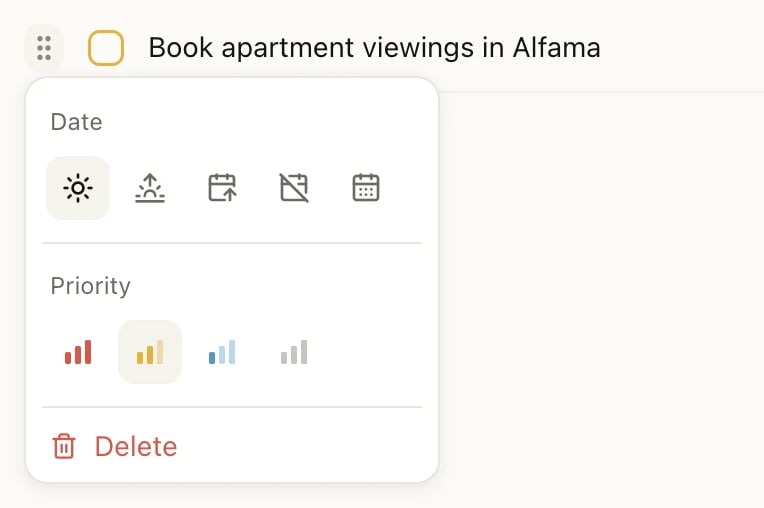
- Date: the buttons from left to right set Today (the sun), Tomorrow (the sunrise), Next week and No date. The last button opens a calendar for any other day.
- Priority: the bars from left to right set High, Medium, Low and None.
- Delete moves the task to Trash.
Complete a task
Click the checkbox next to a task, or move to it with the arrow keys and press E. A Task completed message appears with Undo; you can also press ⌘Z (Ctrl+Z on Windows) while it’s on screen. If the task was due on an earlier day, Heym asks when you did it, so your history stays right: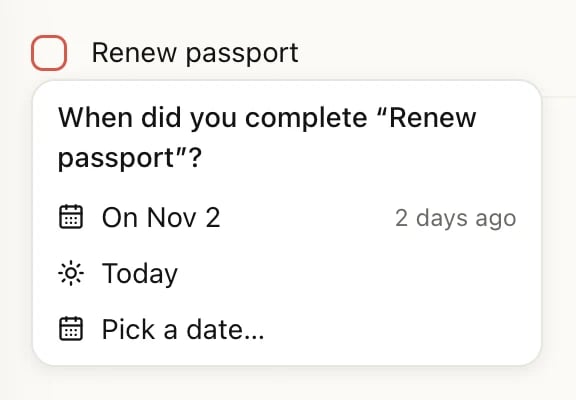
Delete and restore a task
Open the task’s ⋯ menu (top right of the open task) or the handle menu, and choose Delete. You can also move to the task and press ⌘⌫ (Ctrl+Backspace on Windows). The task goes to Trash, where you can restore it; how that works is on Undo and Trash.Keyboard shortcuts
Press ? to see every shortcut. If you control your computer by voice, turn off Single-key shortcuts (keys like C, E or G then I) in Settings → Preferences. All shortcuts are on Keyboard shortcuts.
What tasks can’t do
- Subtasks. Heym has no subtasks. Add a checklist to the task’s description instead: type [] and a space, or type / and choose To-do list. For bigger pieces of work, make a project with a task for each step.
- Archive. Tasks can’t be archived. Complete them, or delete them if they no longer matter.
Limits
Tasks are unlimited on every plan, Free included. See Free, Pro and Lifetime.Related
Type a task in one line
Set the date, time and priority while you type the title.
Repeating tasks
Tasks that come back every day, week or month.
Inbox, Today and Upcoming
Where your tasks show up and how to sort them.
Undo and Trash
Take back a change or restore a deleted task.