

See the shortcuts inside Heym
Press ? anywhere in Heym, or click your name at the top of the sidebar and choose Keyboard shortcuts. The list opens on the right side of the window. Press Esc to close it.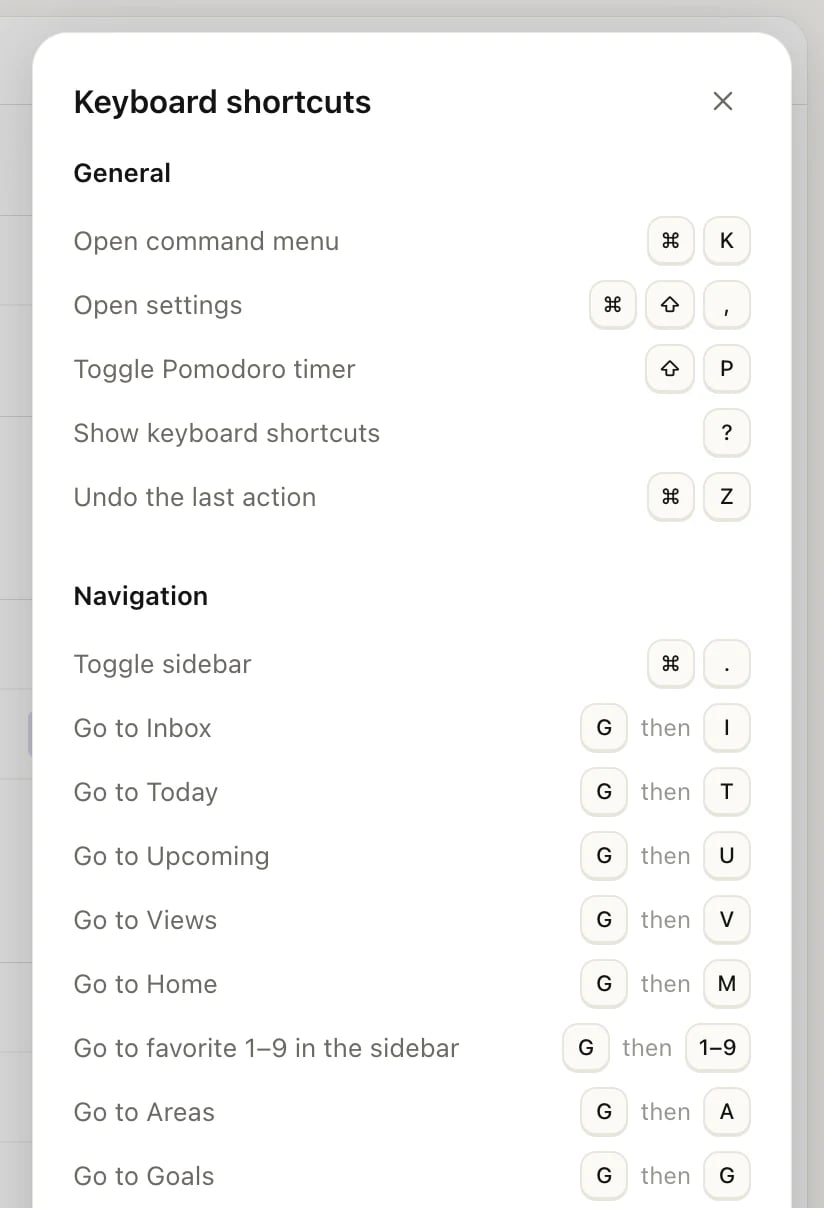
Press ? to open the shortcut list
General
Go to a page
Press G, let go, then press the second key within about a second.G then T opens Today, G then H Habits, G then N Notes
To add favorites and change their order, see Customize Heym. These shortcuts work even for pages you’ve hidden from the sidebar.
Move through a list
These work in task lists and in the lists of goals, projects, habits, notes and life areas, except the two marked for task lists only. Press ↓ or J once to put the highlight on the first item.Select several items and change them at once
Select items with the keyboard, then pick what to do with all of them from the command menu. This works on tasks, goals, projects, habits, notes and life areas.1
Highlight the first item
Open a list, such as Inbox, and press ↓ or J.
2
Add items to the selection
Press X to add the highlighted item. Move with ↓ or ↑ and press X again for each item you want. ⇧↓ and ⇧↑ extend the selection by one item, and ⌘A selects everything in the list.
3
Choose an action
Press ⌘K, or click Actions in the bar at the bottom of the window that shows how many items you’ve selected. Pick an action from Bulk actions.
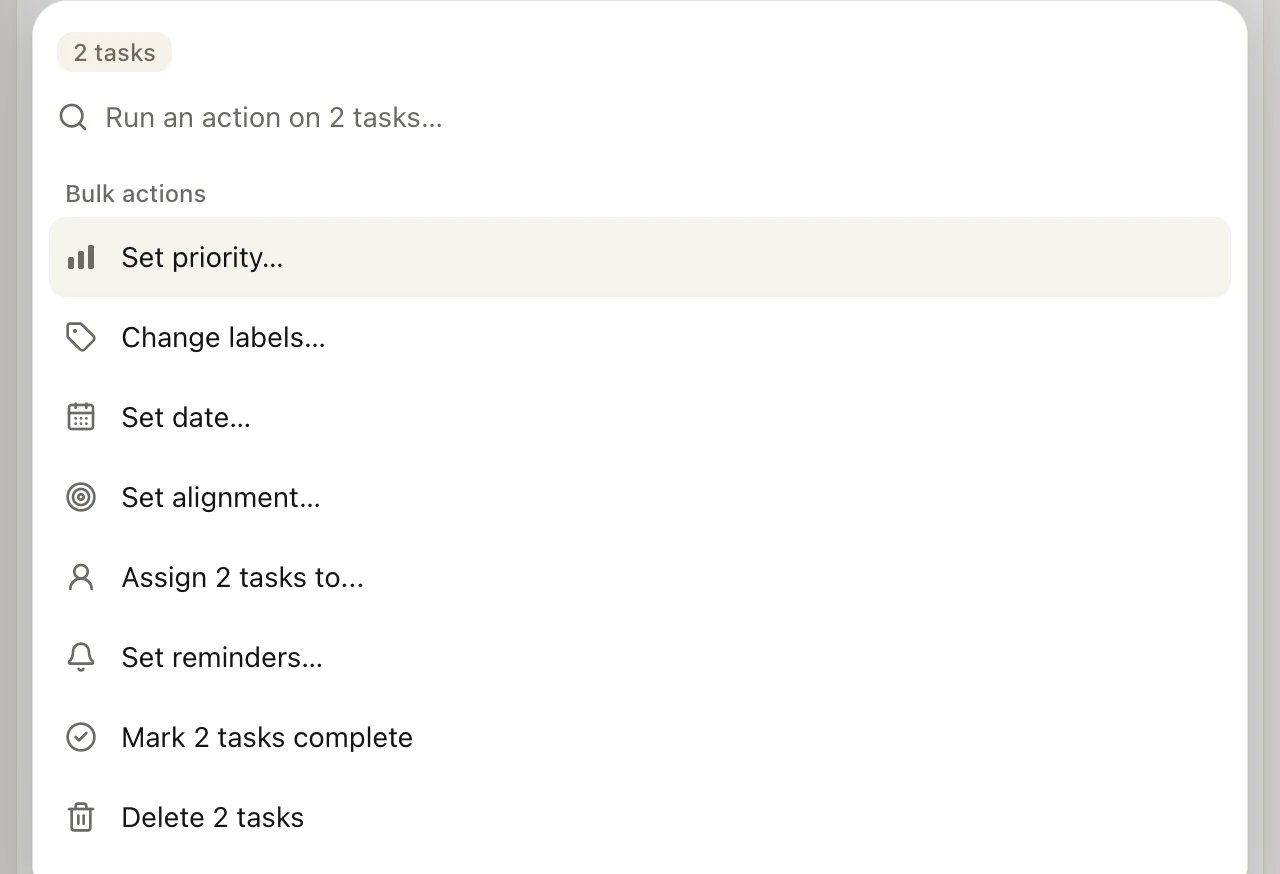
The command menu with two tasks selected
With tasks selected, E completes them all and ⌘⌫ deletes them all, without opening the menu. ⌘⌫ also deletes selected notes. For other items, choose Delete … in the menu. To clear the selection, press Esc or click × in the bar at the bottom.
Calendar
When a list is shown as a calendar:
See Plan on the calendar for the calendar itself.
Format text
These work in notes, in a task’s description and in a project’s Notes section.Type Markdown as you write
Type these at the start of a line, in the same places, and Heym turns them into formatting:
Inside a line,
**Text** makes bold, *Text* italic, `Code` inline code and ~~Text~~ strikethrough.
Mac app shortcuts
The Mac app adds these on top of everything above:Turn off single-key shortcuts
If you control your computer by voice, single letters can trigger shortcuts by accident. You can turn those off and keep the rest.- Click your name at the top of the sidebar, then Settings.
- Click Preferences.
- Turn off Single-key shortcuts.
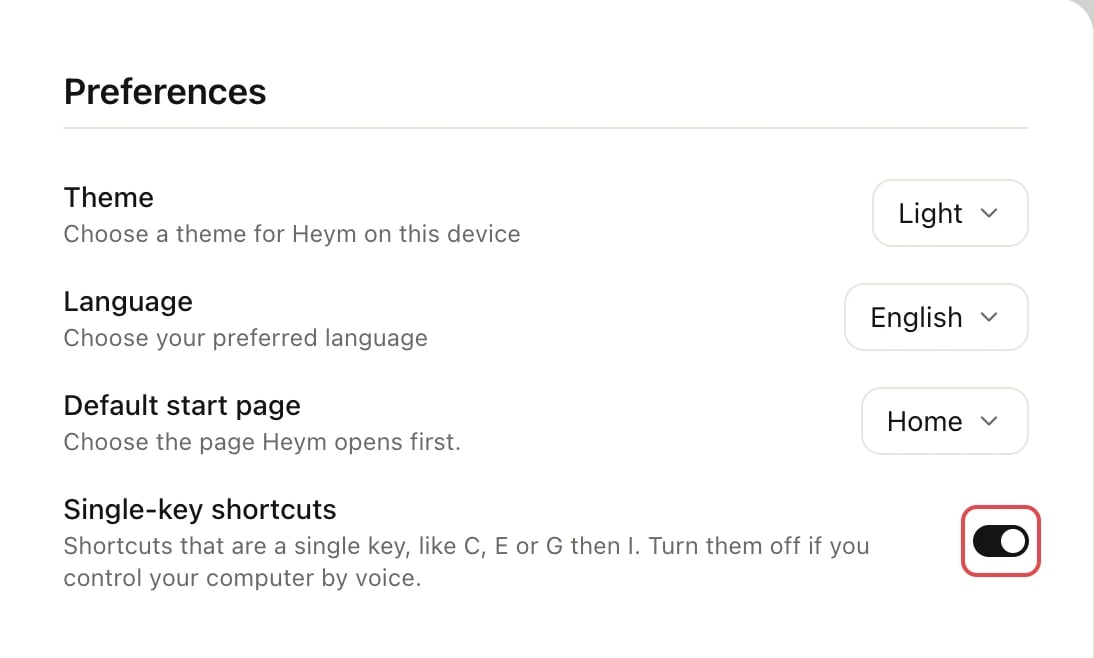
Settings → Preferences
Using Heym in a browser on Windows or Linux
Heym’s shortcut list shows Ctrl and Alt in place of ⌘ and ⌥ when you’re not on a Mac. Press Ctrl for the command menu (Ctrl+K), undo (Ctrl+Z), the list shortcuts above and all text formatting. Three shortcuts have no Ctrl version yet: opening Settings, hiding the sidebar and closing the open task. Use the menu under your name for Settings, and click the sidebar and close buttons instead.Related
The Mac app
Tabs, the menu bar icon and updates.
Customize Heym
Arrange the sidebar, favorites and Home.
Tasks
Add, complete and organize tasks.
Undo and Trash
Take back a change or restore a deleted item.