

Capture: get it into the Inbox
Capture anything that has your attention, without deciding what it is yet. In Heym, a task with no date and no alignment lands in the Inbox.- Press C anywhere in Heym, as long as you’re not typing. The new task window opens. Type the thought and click Create.
- Use the line at the top of the Inbox: click New task, type and press Enter.
- Press ⌘K, type the task, choose Create task “…” and click Create in the window that opens.
- In the Mac app, press ⌘N (File → New Task) while Heym is the active app.
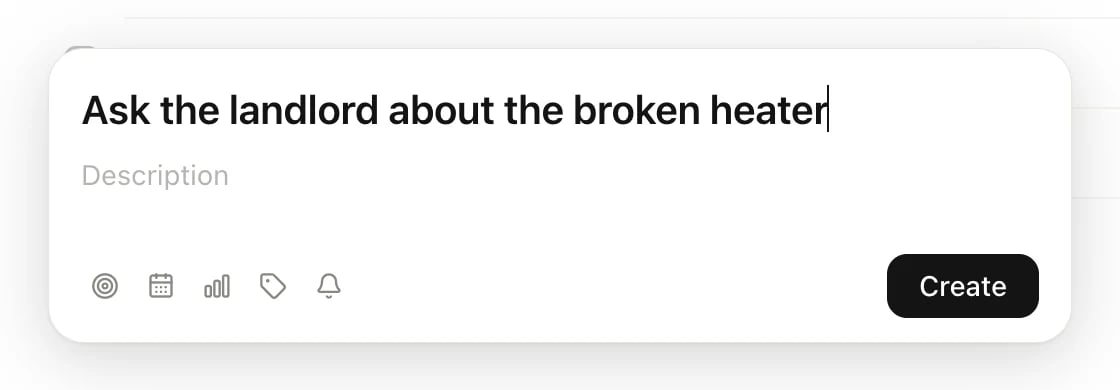
Press C to capture a task
Clarify: decide what each item is
Open the Inbox and take the tasks one at a time, from the top. Click a task to open it, then decide:
A task leaves the Inbox as soon as it has a date or an alignment. A label alone doesn’t move it, so a clarified task needs one of those two. To clarify several tasks at once, select them with X and press ⌘K to set a date, alignment or labels for all of them.
Organize: projects, contexts and lists
Projects
A GTD project is any outcome that takes more than one step. Make each one a Heym project (Projects → New project), put its tasks inside, and link it to the life area it belongs to under Alignment.Contexts as labels
Heym has no separate contexts. Use labels instead: “calls”, “errands”, “computer”, “home”. When you create a task, type#calls in its title and pick calls from the list that opens. For a label you haven’t used yet, the list offers Create. A task can have several labels.
Every label gets its own list under Views → Labels, so “calls” becomes a list of every task you can do by phone.
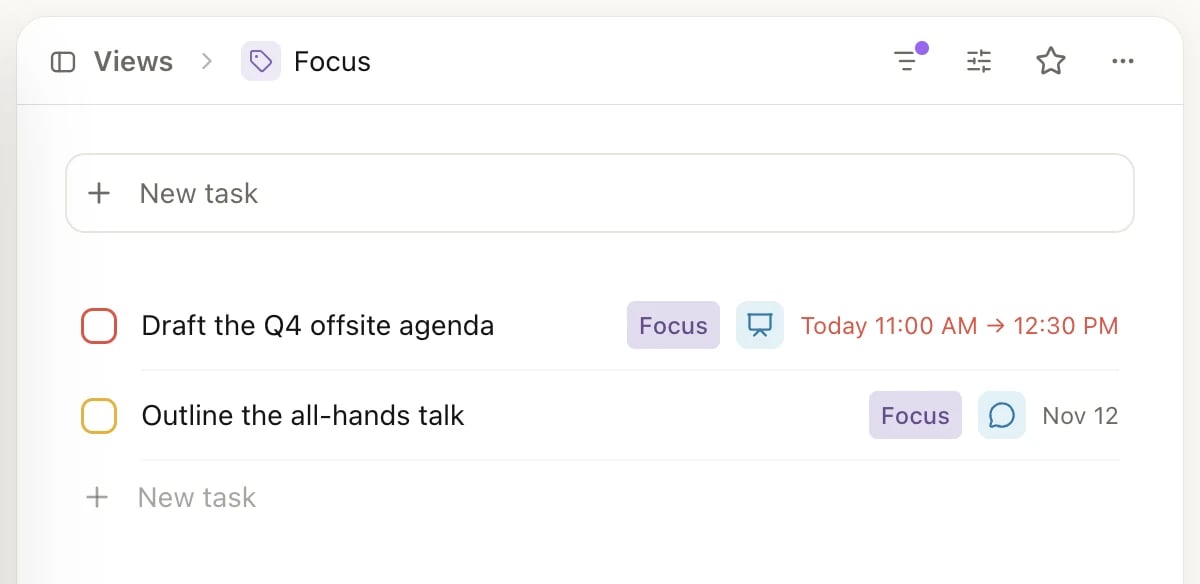
A label's own list under Views
Next actions
Heym doesn’t mark one task in a project as the next action. Make it a label: give each project’s next step a “next” label, and Views → Labels → next becomes your next-actions list across all projects.Waiting for and someday
- Waiting for: add a “waiting” label, and write who you’re waiting on in the description. With Heym Pro, on a shared project, goal or area you can also assign the task to the other person.
- Someday/Maybe: add a “someday” label and set Alignment to the life area it belongs to, so it leaves the Inbox without a date. Look through the label’s list during your weekly review.
- Tickler: give the task a date in the future. It stays out of Today until that day and shows in Upcoming.
Reference
Keep reference material in Notes, not in tasks. A note can be linked to a goal or life area and can carry labels.Review: every week
The weekly review keeps the system trustworthy: get the Inbox back to empty, look over every project and its next action, go through your “waiting” and “someday” lists, and plan the coming week. Run a weekly review walks through it screen by screen and shows how to make it a repeating task.Engage: choose what to do now
Work from Today. It lists what’s overdue first, then today’s tasks by time of day: All day, Morning, Afternoon and Evening. When you’re in a context (at your desk, out on errands), open that label’s list under Views → Labels. On Today, Inbox or Upcoming you can also click the filter button at the top right and filter by Label. With Heym Pro you can save a filtered list as a view, for example every open “calls” task with no date. See Views and filters.Where Heym fits GTD and where it doesn’t
- Labels don’t clear the Inbox. Only a date or an alignment moves a task out.
- No next-action marker. Use a label, as above.
- One date per task. There’s no separate start or defer date: a task’s date is the day it appears on Today.
- No subtasks. Write a checklist in the task’s description instead.
- A task sits in one place. Its alignment is a single project, goal or life area.
- Heym adds goals and habits. GTD’s areas of focus are Heym’s life areas, and its goals are Heym’s goals. Use them if they help; GTD works without them.
Related
Weekly review
The GTD review, built on Heym’s screens.
Inbox, Today and Upcoming
What lands in each list, and how to sort and filter them.
Labels
Create labels, pick colors and open each label’s list.
Type a task in one line
Dates, labels and alignment straight from the title.