

How PARA maps onto Heym
Heym also has goals and habits, which PARA doesn’t name. You can ignore them, or use a goal as the reason behind a group of projects.
Projects: work with an end
In PARA, a project is work with a clear outcome and a deadline. A Heym project fits that: it can carry a deadline, and its progress fills as you complete its tasks.- Open Projects and click New project.
- On the Overview tab, set Date with a Deadline, and set Alignment to the life area (or goal) it belongs to.
- Add tasks on the Tasks tab. Group them into sections, and add Milestones on the Overview tab for checkpoints.
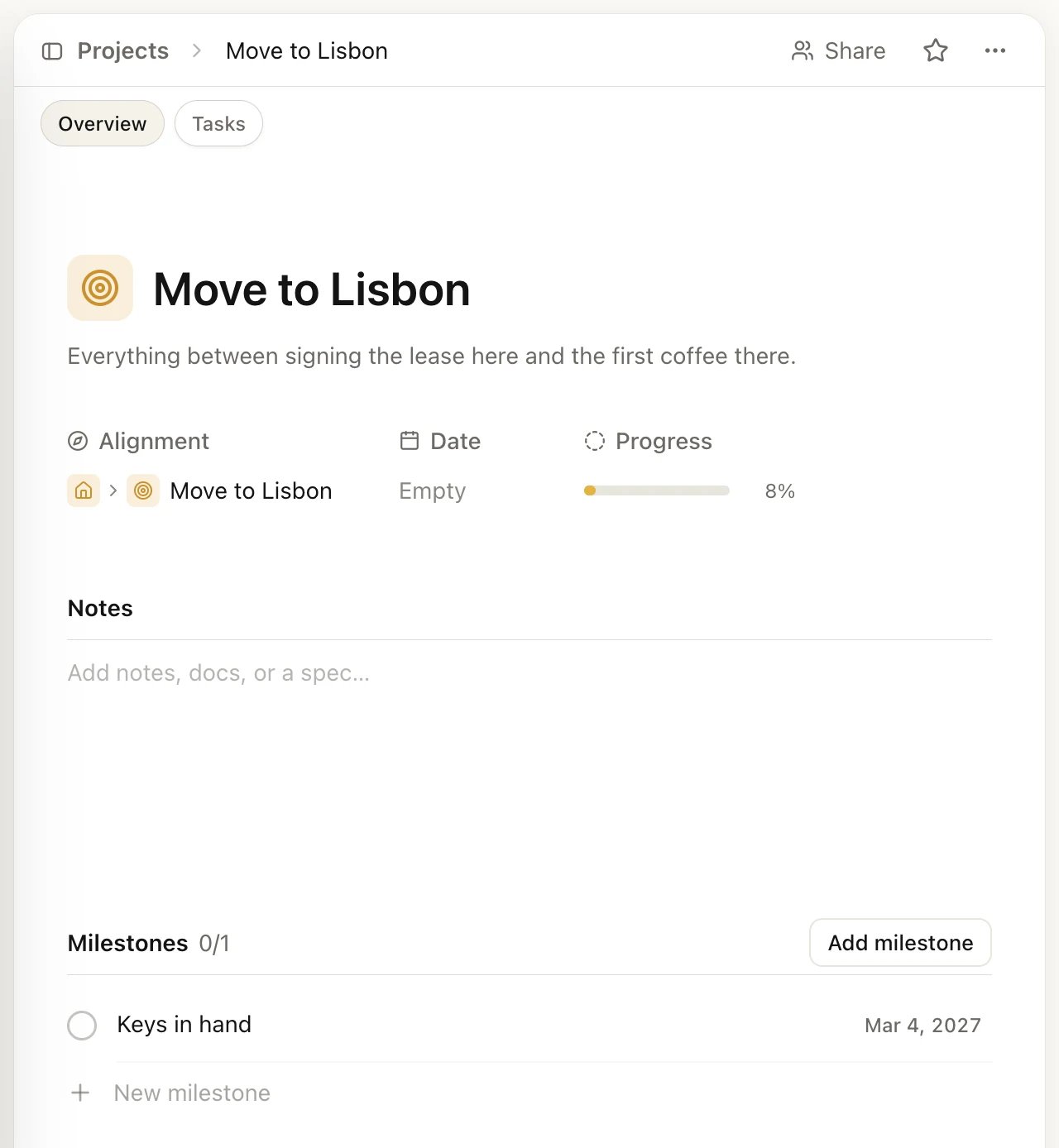
A project's Overview tab
Areas: life areas
PARA’s areas are responsibilities you keep up with no end date, such as health, finances or your home. Heym’s life areas are the same idea. Every account starts with nine (Sport & Health, Work & Career, Money & Finance and so on), and you can rename them, delete them or click New area on the Life areas page. Each area’s page collects its goals, tasks, habits and notes. Projects aren’t listed there: a project linked to a goal shows on that goal’s page, and every project is on the Projects page.The Free plan allows 9 life areas. Rename the starting areas to fit your own responsibilities (for example “Car” or “Taxes”) rather than adding new ones. See Free, Pro and Lifetime.
Resources: notes sorted with labels
PARA’s resources are topics you collect material on: recipes, travel ideas, a hobby. In Heym, keep each piece as a note and give it a label per topic.- Open Notes, click New note and write or paste the material.
- Point just above the note’s title, click Show properties and add a label under Labels, for example “Recipes”. Type a new name to create the label.
- In the Notes list, click the view settings button, then Group → Label. Each topic becomes its own group.
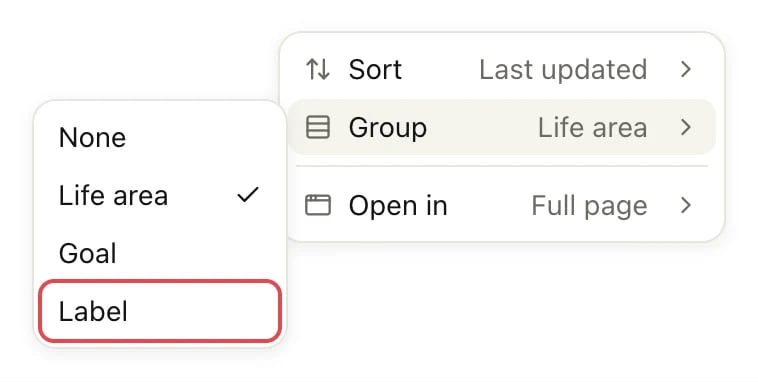
The Group options in the Notes view settings
Archives: archive and completed
In PARA, finished projects and inactive areas move to the archive. In Heym you either complete or archive them.- Complete a project or goal when it’s done: open it, click ⋯ at the top right and choose Mark completed. Completed goals leave the Goals list (turn on Show completed in its view settings to see them). Completed projects stay in the Projects list.
- Archive a project, goal, life area or habit you want out of sight: click ⋯ and choose Archive. When you archive an area that has goals, Heym asks whether to archive its goals too.
- Find archived items by turning on Show archived in the view settings of that list. They appear in an Archived group at the bottom. To bring one back, open it, click ⋯ and choose Restore.
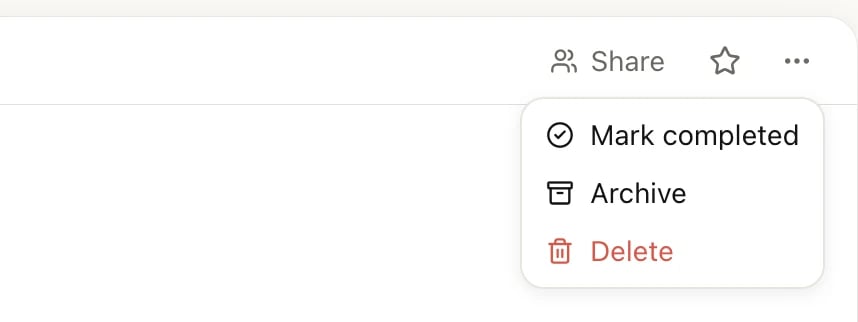
A project's ⋯ menu
On the Free plan, archived goals, projects, habits and life areas still count toward your limits. Completing a goal or project frees its slot. See Free, Pro and Lifetime.
Where PARA and Heym don’t line up
- Notes can’t be archived. You can only delete a note, which moves it to Trash. To keep an old note out of the way, give it an “Archive” label and group the list by label.
- Notes link to a goal or a life area, not a project. Use the project’s Notes section for project material, or link the note to the project’s goal or area.
- There are no folders. Notes are one list. Labels and grouping are how you sort them.
- Area pages don’t list projects. Link a project to one of the area’s goals and it shows on that goal’s page. Otherwise find it on the Projects page.
- A task belongs to one place. Its Alignment is a project, a goal or a life area, not several.
- Resources aren’t a separate kind of item. A resource is a note you’ve labeled. There’s no Resources screen.
Related
Projects
Tasks, sections, milestones, and completing or archiving a project.
Notes
Writing, labels, links to goals and areas, and Trash.
Life areas
Create, rename, archive and arrange your areas.
Getting Things Done
Another method that maps onto Heym’s Inbox, projects and labels.